
Windows isn’t very adaptive when it comes to having larger hard drives and free storage space.
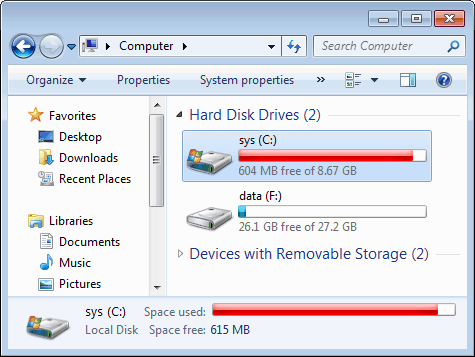
I currently have a 2TB drive with over 160GB free on my media server at home and it shows the same bar as above. 160GB..that is a sizable chunk of space yet Windows thinks I need a big red bar to indicate that it is critically low.
After some searching I came across some articles on how to resolve it. You cannot adjust the % of space to warn about, but you can alleviate the red bars.
I have uploaded a file that you an open and it will import the settings below into your registry. You may need to reboot for them to take effect, but most of the time you won’t. This works on Windows 7 and Windows 10. I have not tested it on windows 8.x or any of the server operating systems.
Below is the contents of my file is you would like to edit the registry yourself.
Windows Registry Editor Version 5.00
[HKEY_LOCAL_MACHINE\SOFTWARE\Classes\Drive]
“PreviewDetails”=”prop:*System.FreeSpace;System.Capacity;System.Volume.FileSystem;*System.Volume.BitLockerProtection”
“TileInfo”=”prop:*System.Computer.DecoratedFreeSpace;System.Volume.FileSystem”
1. Run REGEDIT as administrator and follow the steps below or download this file and skip the rest.
2. Open HKEY_LOCAL_MACHINE\SOFTWARE\Classes\Drive
3. Change the values for both TileInfo and PreviewDetails keys (double click on the keys) by removing the phrase “System.PercentFull;“, without the quotes.
The TileInfo key:
Before: prop:*System.PercentFull;System.Computer.DecoratedFreeSpace;System.Volume.FileSystem
After: prop:*System.Computer.DecoratedFreeSpace;System.Volume.FileSystem
The PreviewDetailskey:
Before: prop:*System.PercentFull;System.FreeSpace;System.Capacity;System.Volume.FileSystem;*System.Volume.BitLockerProtection
After:prop:*System.FreeSpace;System.Capacity;System.Volume.FileSystem;*System.Volume.BitLockerProtection
4. Open My Computer, you should be able to see the absence of the color bars. If you still see them, just restart windows explorer, or, if you don’t know how to do this, just restart Windows.